
Clean Install vs. In-Place Upgrade (Windows 11): Which is better?

Upgrading to Windows 11 involves a technical fork: clean installation or in-place upgrade. Each method leads to the same destination, but through different operational mechanisms.
A clean install removes everything on the system drive, reinstalls the OS, and applies a fresh configuration. An in-place upgrade retains applications, settings, and user data, rebuilding the OS over existing structures.
Microsoft introduced Windows 11 to general availability on October 5, 2021, and since then, users have adopted both approaches with varied outcomes.
Your method of choice depends on system state, workload demands, and how deeply configuration changes matter to you.
What is a Clean Install?
A clean install refers to a complete reinstallation of the operating system on a machine whose system partition has been formatted. It discards all previous data and configurations.
This method begins with creating a bootable USB drive using Microsoft’s Media Creation Tool or downloading a Windows 11 ISO image manually. Installation occurs outside the OS environment, typically through BIOS-level boot, with Secure Boot and TPM 2.0 requirements enforced during setup.
You must back up personal files, licenses, drivers, and configuration records before proceeding. The installer does not retain user folders or system profiles. Moreover, clean installs bypass OEM recovery layers so that reactivation may require a Microsoft account linked to the device.
In addition to performance benefits, clean installations allow administrators to eliminate residual registry clutter, malware remnants, and file system inconsistencies. For devices transitioning from unsupported or unstable builds, this method resets the baseline.
Clean installs are best used when preparing machines for repurposing, removing legacy conflicts, or deploying across unmanaged environments. If you need absolute clarity over what goes in, this is where you start.
What is an In-Place Upgrade?
An in-place upgrade installs a new version of Windows on top of the current system while retaining personal data, apps, settings, and the core system structure.
The upgrade launches from within the existing Windows environment using the official ISO or the Installation Assistant. It overlays the operating system files, updates system registries, and revalidates hardware configuration without erasing disk content.
Device drivers and third-party applications remain active unless they conflict with new system libraries. Besides preserving user continuity, the process simplifies OS migration for enterprise fleets and domain-joined machines.
In addition, it reduces setup time since data transfer and application reinstallation are unnecessary. However, it relies on system health; if the current OS is unstable or corrupted, the upgrade may inherit those faults.
If you're looking to refresh your system while maintaining your environment, this method works well. It's also suitable for Windows 10 devices moving to Windows 11 without triggering downtime or large-scale IT interventions.
Key Differences Between Clean Install and In-Place Upgrade
Windows 11 offers two valid installation pathways, but their technical execution differs substantially.
From system behavior to post-installation performance, the divergence affects how endpoints behave across hardware and user environments.
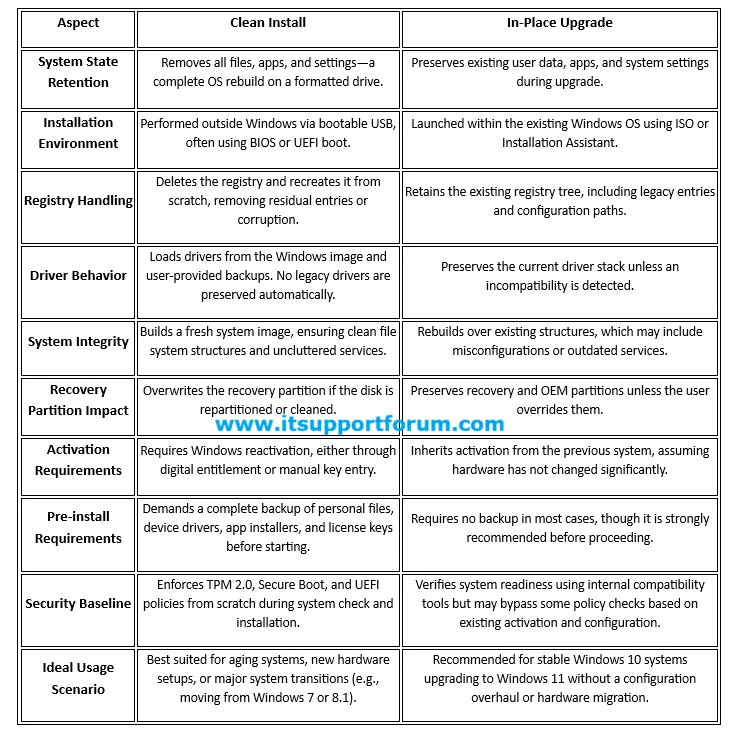
The table below provides a focused breakdown of ten core dimensions: installation logic, registry state, activation handling, and driver management.
When to Use Each Method – Practical Scenarios
Migrating from Unsupported Operating Systems
If you're moving from Windows 7 or Windows 8.1, a clean install is the only supported path to Windows 11. Microsoft does not provide an upgrade bridge for these builds.
Moreover, older systems carry outdated driver models, obsolete recovery partitions, and incompatible registry structures. In such cases, rebuilding from zero avoids conflict during boot configuration or service startup.
Enterprise Device Refreshes
For organisations reimaging large fleets, clean installation ensures consistency. IT admins often use deployment tools with pre-loaded drivers, policies, and security baselines.
This allows complete control over the system image and eliminates fragmentation across endpoints. Group Policy, BitLocker, and application licenses can be re-applied from central management consoles.
Upgrading Stable Windows 10 Devices
If the device is in good operational condition and meets all compatibility checks, an in-place upgrade offers a fast and controlled transition.
The Windows 11 Installation Assistant verifies hardware and performs the upgrade without disrupting the file system. This approach suits managed laptops, remote devices, or work-from-home endpoints.
Recovering from Malware or System Corruption
Systems affected by malware, persistent adware, or recurring blue-screen errors benefit from a clean install. It removes hidden services, broken startup entries, and altered policies.
In addition, system partitions are reformatted to ensure that no residual code executes at the boot level. This method restores integrity to compromised machines.
Devices with Complex or Legacy Drivers
Machines with unstable GPU drivers, audio conflicts, or outdated OEM utilities may encounter compatibility problems during upgrades. A clean install prevents driver retention errors.
After installation, updated drivers can be applied manually using vendor-supplied packages or from Windows Update. This improves performance stability across problematic chipsets.
Time-Constrained Home Users
Users with limited time and minimal technical oversight may prefer in-place upgrades. These automatically preserve desktop layout, application state, and user preferences.
Still, it’s wise to back up data before proceeding. A single interruption during installation could leave the system partially migrated (rare, but possible).
Read also: